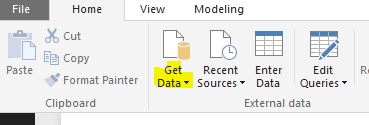
1. Click on get data
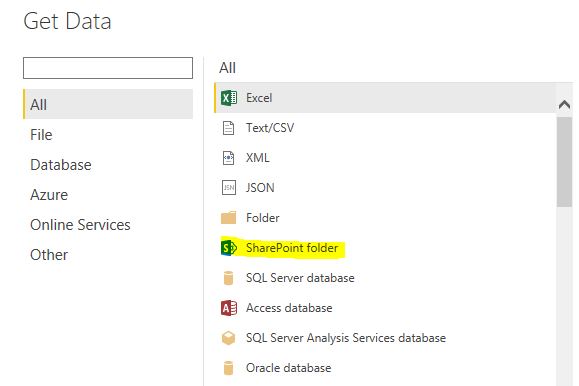
2. A window with all the data sources will appear. Select SharePoint folder from the left pane.
3. Enter only the root URL of the share point repository.
ex: https://brandix.sharepoint.com/sites/Bi3
4. Select Organizational account and click on sign in and enter your username and password. Once signed in, click on Connect.
5. A new window will appear; select load.
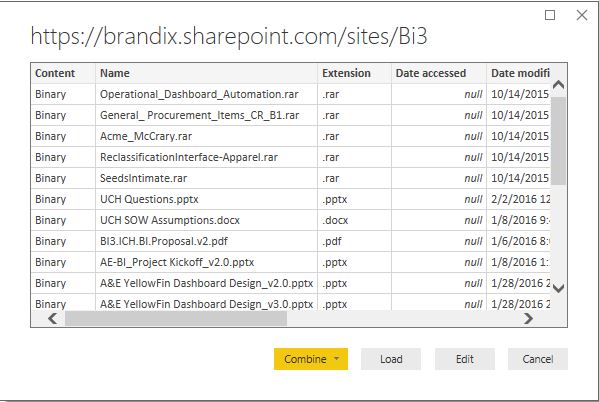
The list of all the files in the share point will be loaded.
6. Select Edit Queries and select the query. (The retrieval of the list of files will be the 1st Query)
7. Select the desired file.
You can refine your search by filtering only xls sheet or any method just like when you use filtering in an excel sheet.
8. When you see the desired file, clock on download:
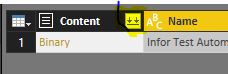
Completely wait until the next window appears, otherwise there will be errors.
9. Now select the sheet you want to get the data from. Again wait until the preview is loaded and select OK. The sheet will be loaded, and the data manipulations can be now done as with any other data source.

 Shalini's Knowledge Share
Leave a comment